
Messaging from Insights
Messages in Insights can be accessed by clicking the Messages tab under Utilities. From there, the DM tab lists all existing chats for the user. To create a new chat, click + New Chat at the bottom of the pane.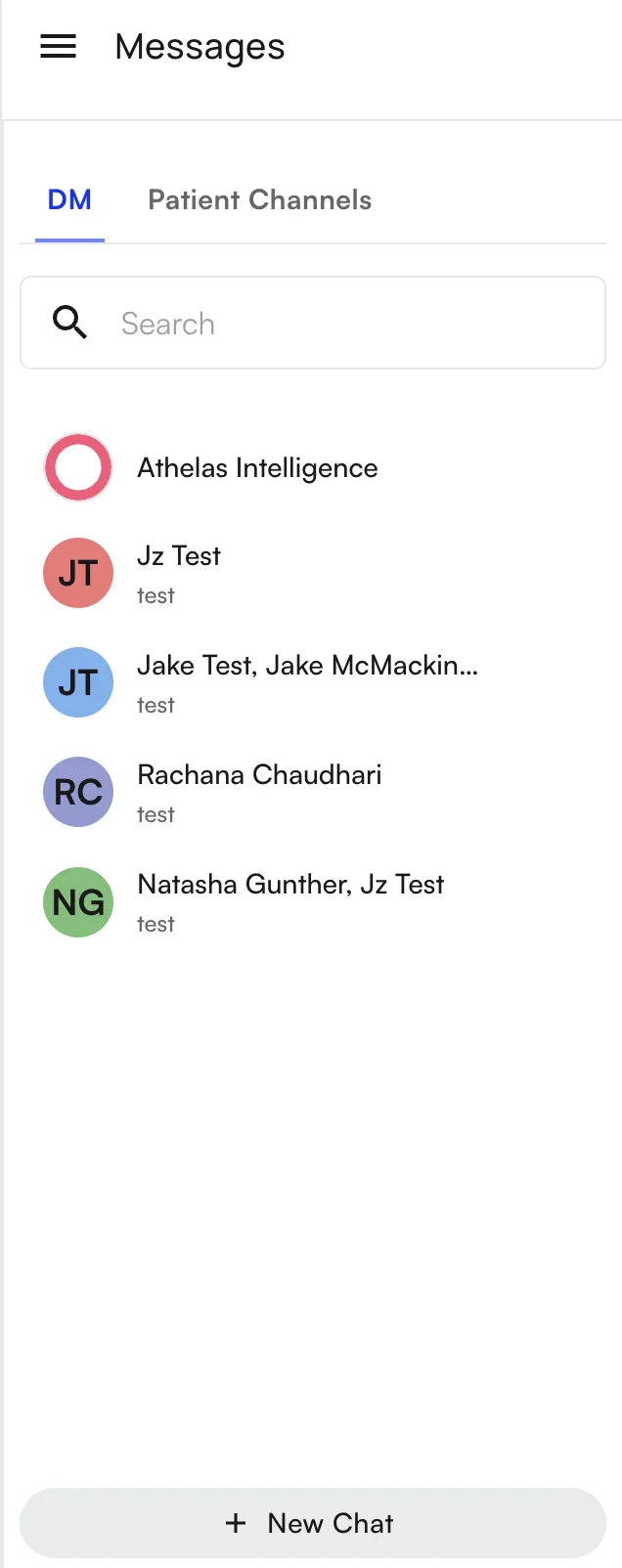
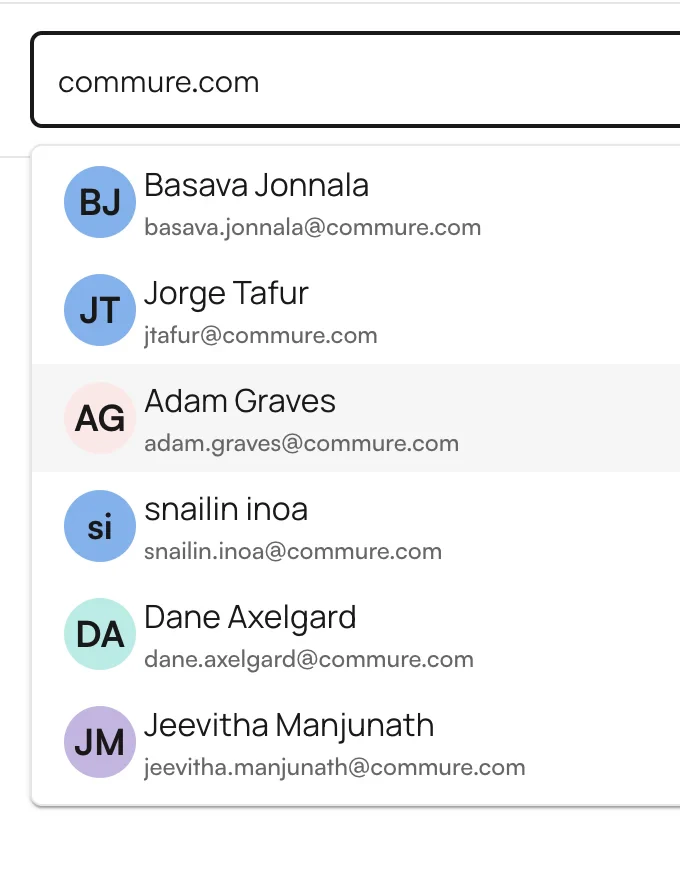
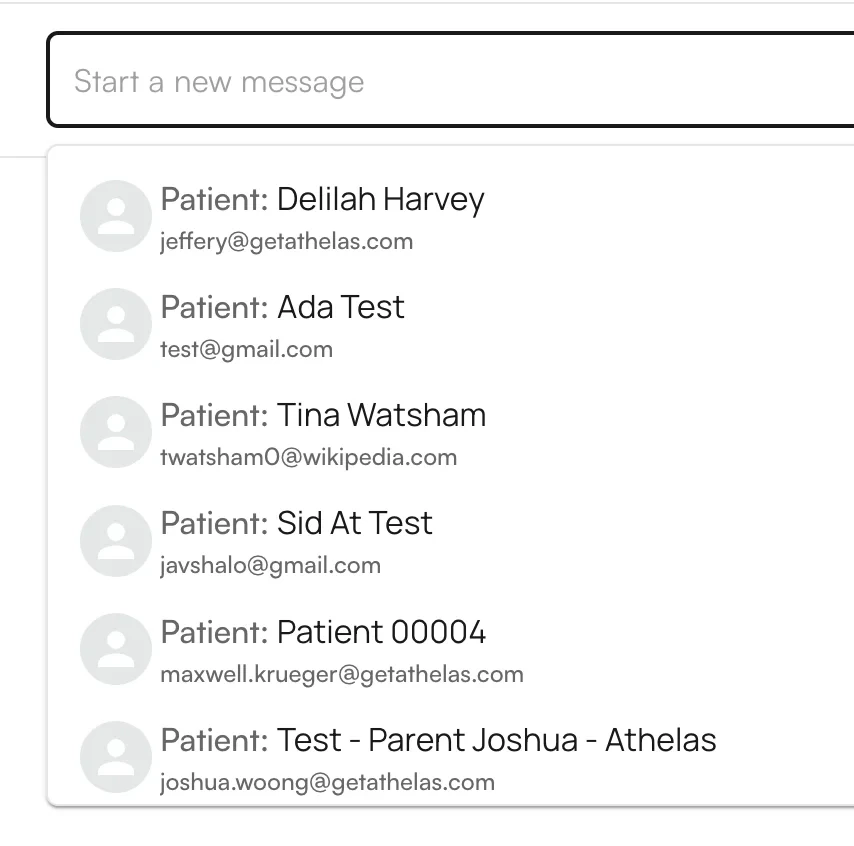
- External patients are designated with
Patient: XXX. - Internal staff show just their name.
New messages
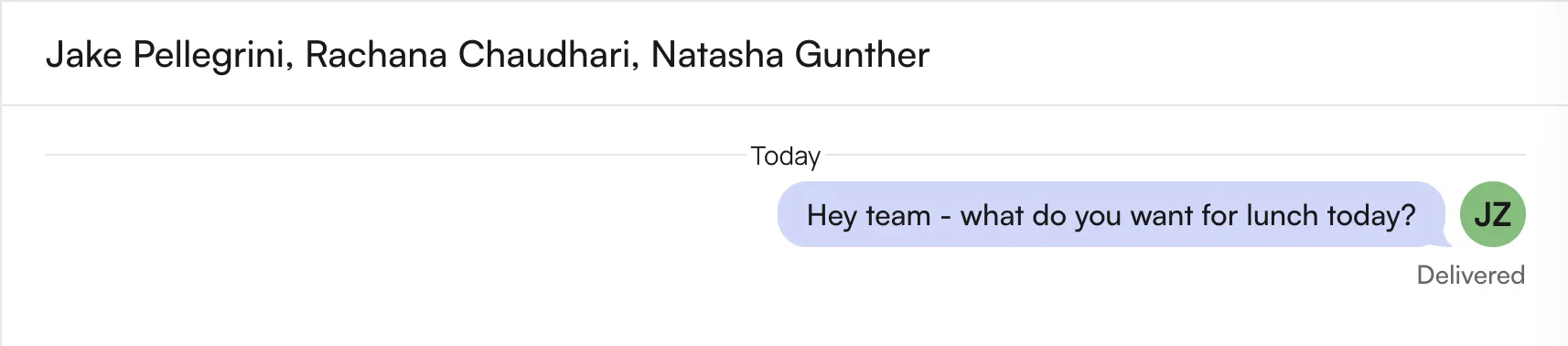
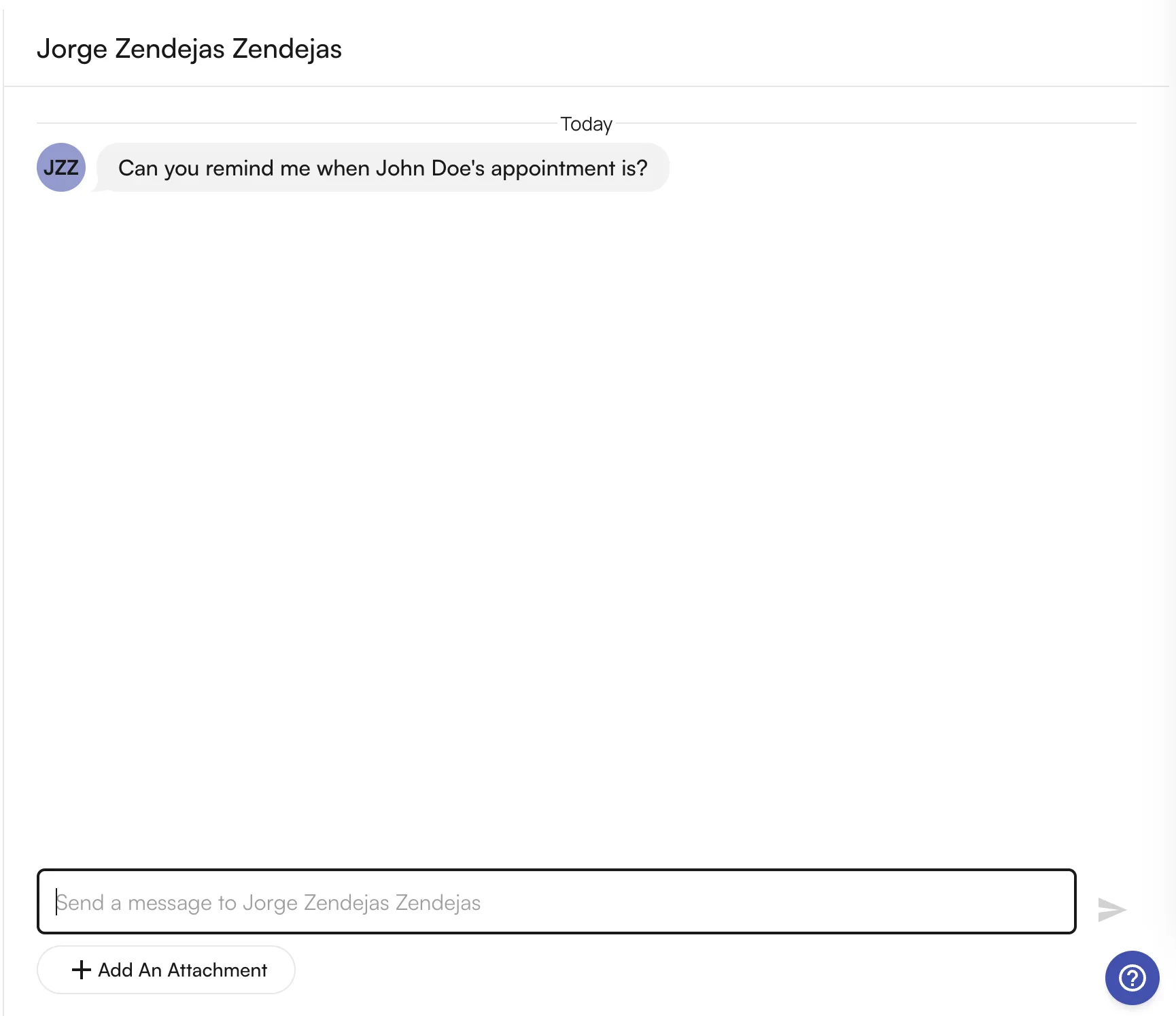
New messages appear at the top of the messages list with an unread indicator. Clicking the message shows the full thread, where you can respond.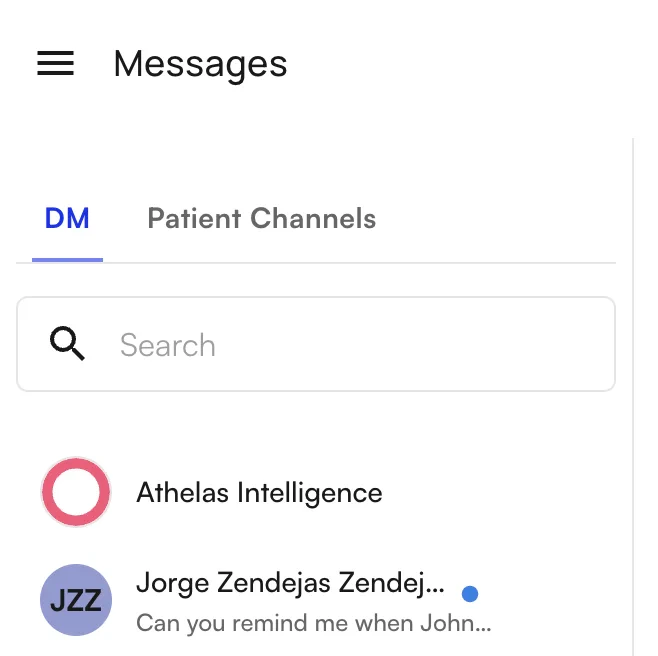
Messaging from the Athelas Patient Portal
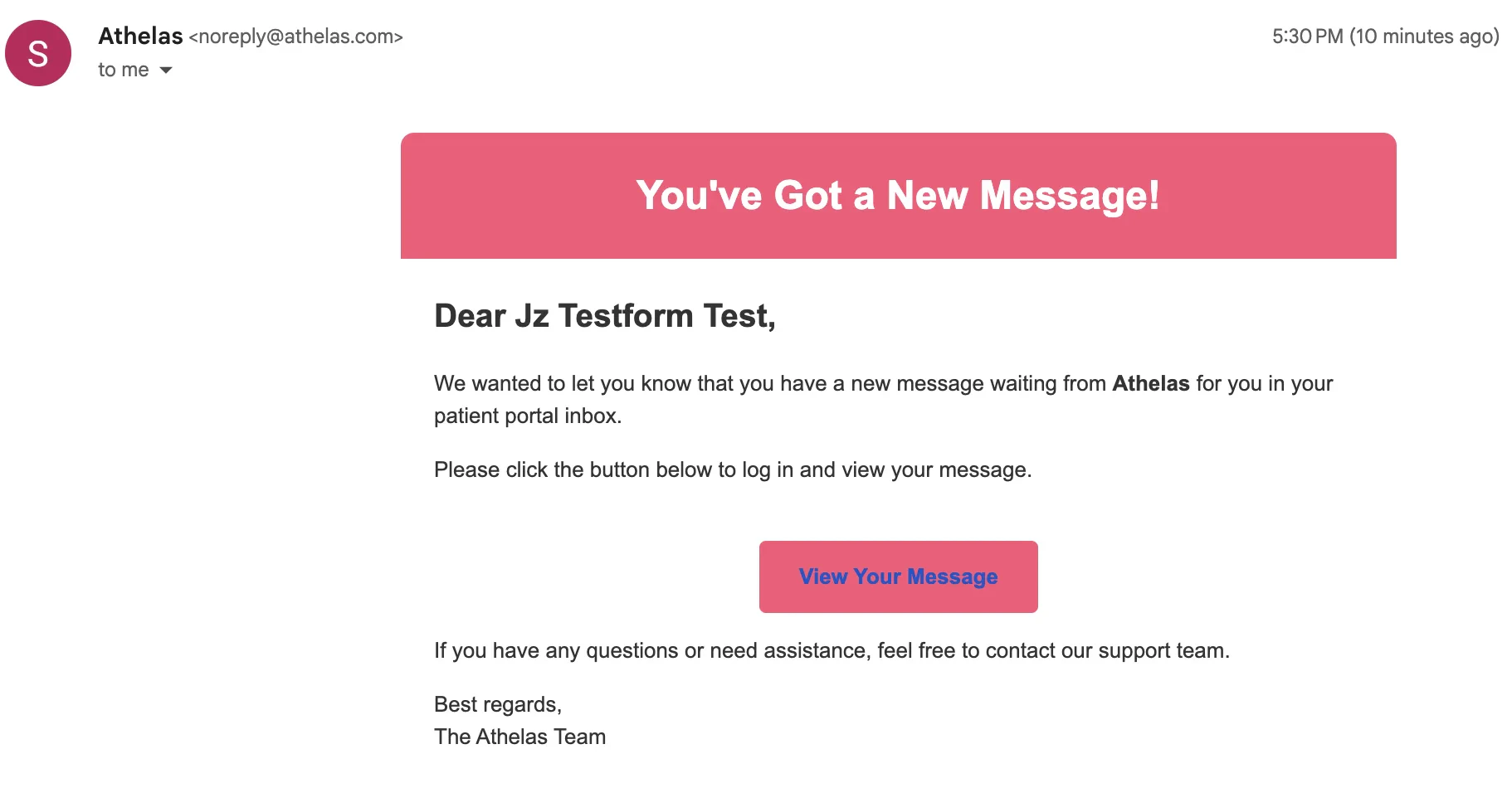
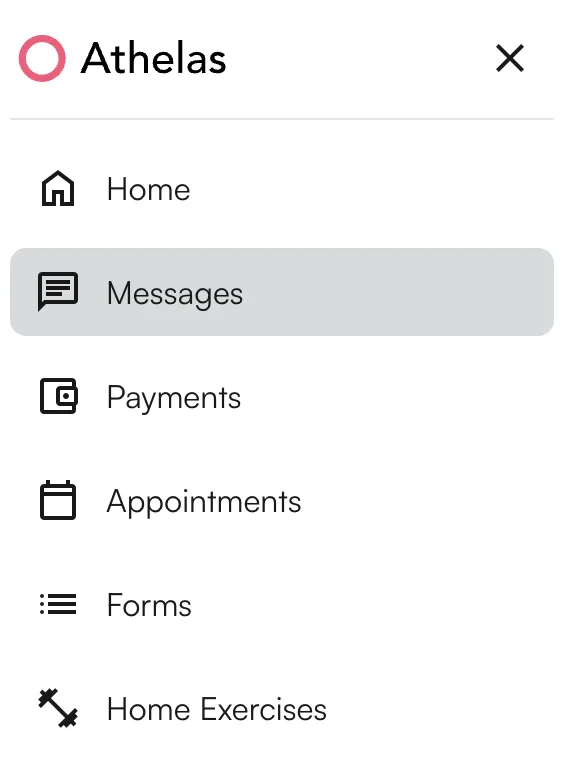
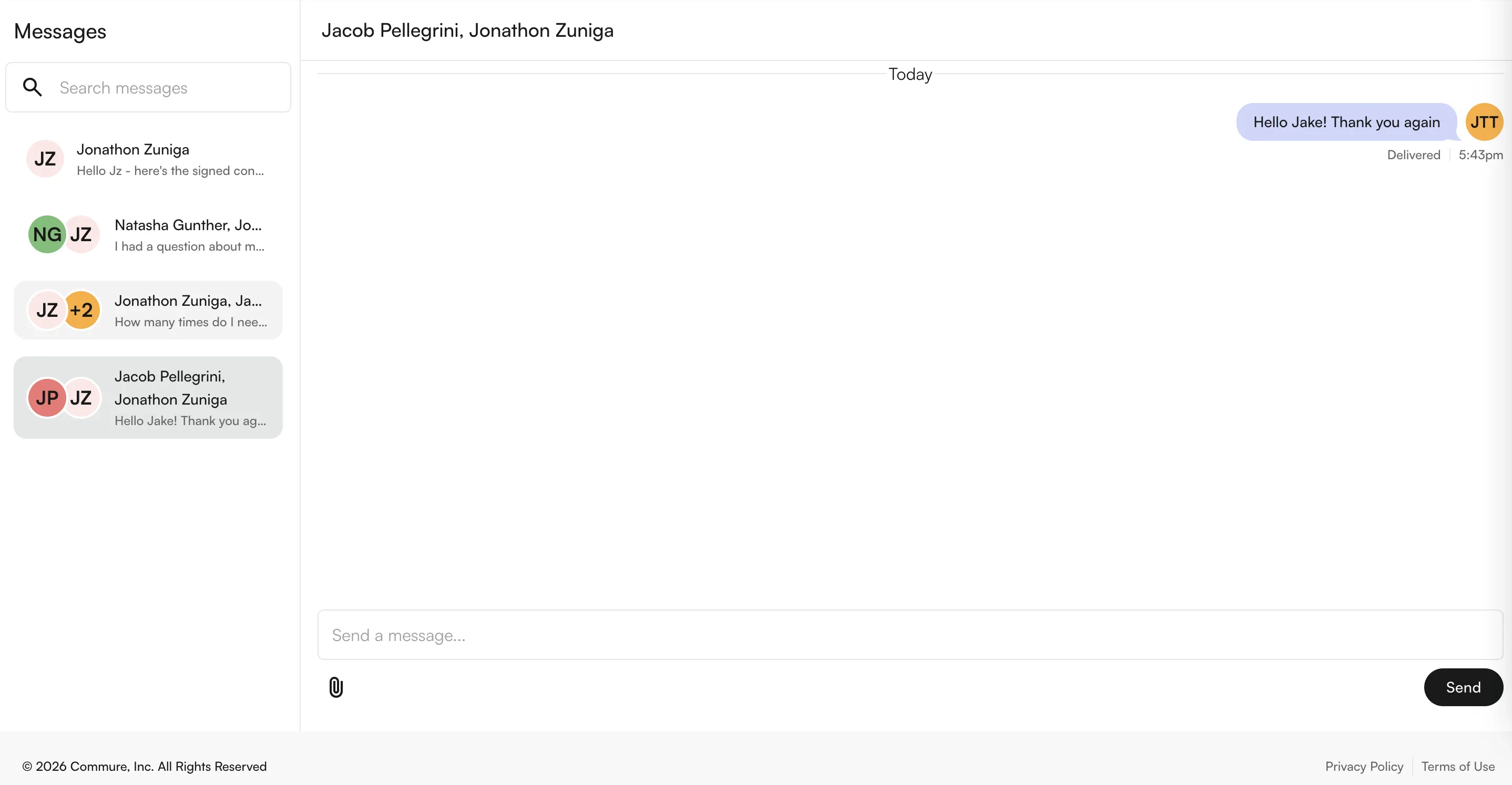
For patients, messages sent from Insights can be accessed in the Patient Portal. Patients are notified of new messages via text or email alerts.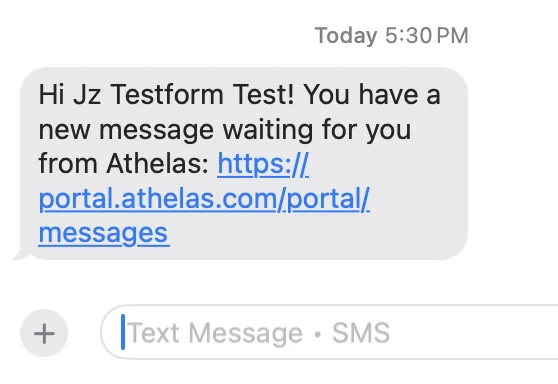
FAQ
Can patients start a new conversation from the portal?
Can patients start a new conversation from the portal?
No. All conversations must be initiated from Insights by provider or site staff. Once a thread exists, the patient can reply freely from the portal.
How are patients notified of a new message?
How are patients notified of a new message?
Patients receive either an SMS or email alert (or both, depending on contact info on file). The notification links directly into the portal, where they can log in and respond.
Can I send a message to multiple patients at once?
Can I send a message to multiple patients at once?
Yes — add multiple recipients in the Start a new message box. However, all recipients (including patients) see each other’s names in the thread. For private bulk outreach, use Outreach Flows or Text Blast instead.
Can I attach files in a message?
Can I attach files in a message?
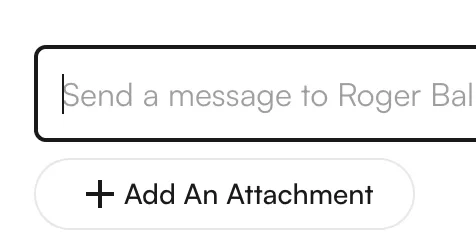
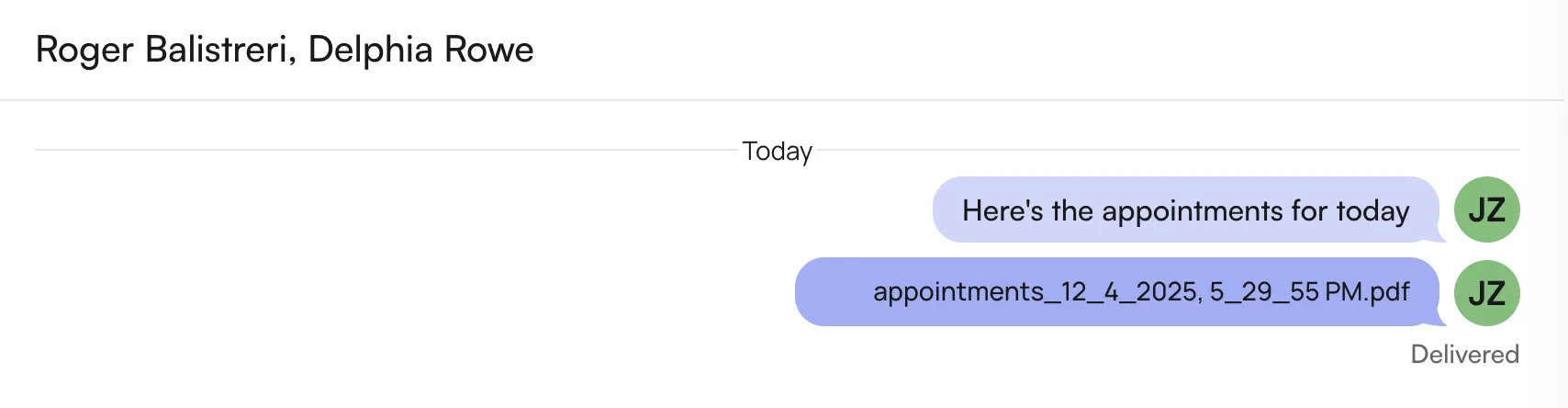
Yes. Click + Add An Attachment at the bottom of the message pane. Attachments are supported for both internal staff threads and external patient threads.
Where do I find the Messages page in Insights?
Where do I find the Messages page in Insights?
Click Messages under Utilities in the sidebar. The DM tab shows all existing chats. The Notifications Center at the bottom of the sidebar also shows a count of unread messages and links directly to the thread.